Reports
View Organization reports embedded directly in the portal and print them when needed.
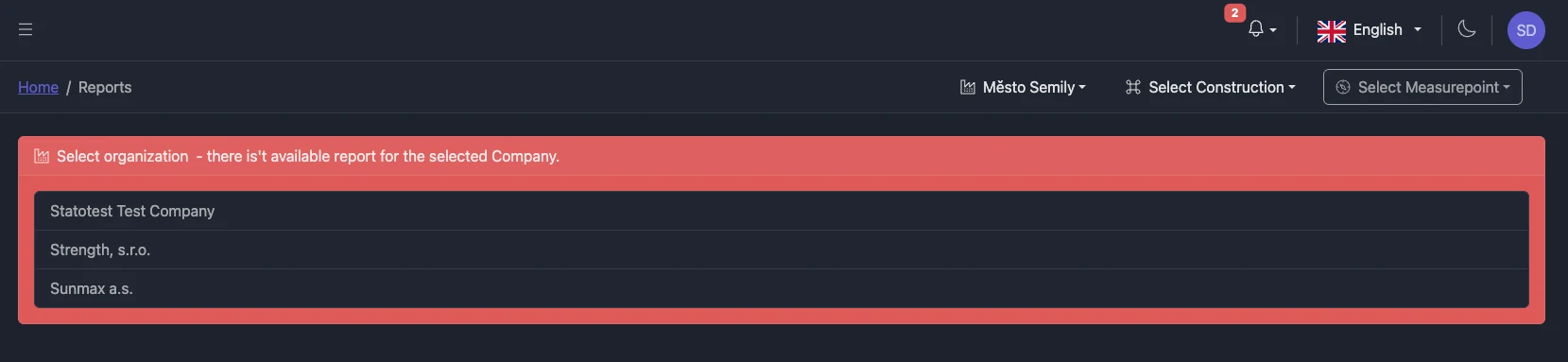
Before you begin
To access a report, select an Organization that has a report configured.
You’ll see a list of available Organizations if none is currently selected. Click an Organization name to open its report.
Availability
Reports are available only for Organizations that have report access configured. If your Organization doesn’t appear, contact your administrator.
View a report
- Go to Reports from the main navigation
- If prompted, choose an Organization from the list
- The report loads inside the page (embedded)
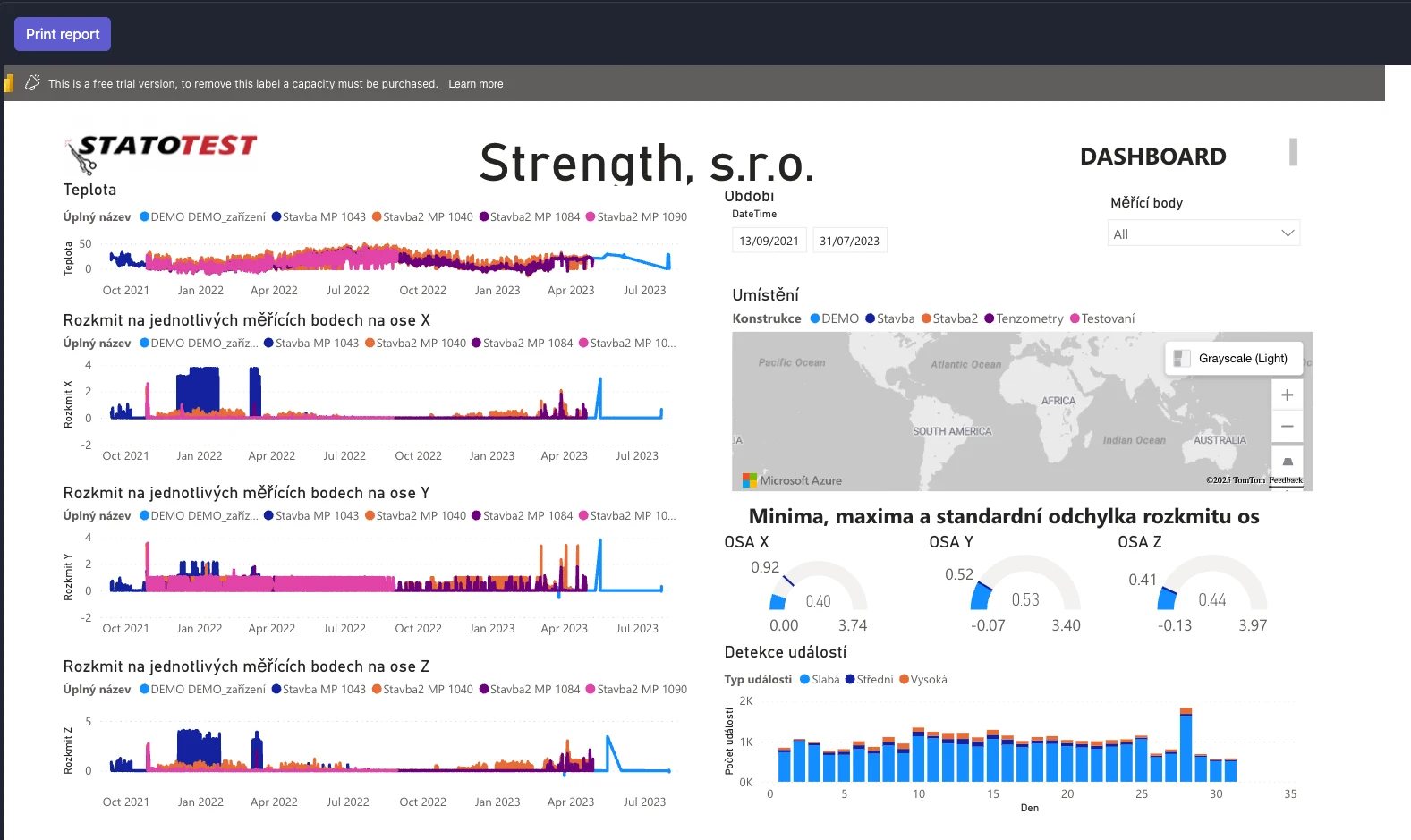
Print or save as PDF
- Click the Print report button above the report
- Your browser’s print dialog will open; choose a printer or “Save as PDF” to export
Printing
Some environments may restrict printing embedded content. If printing is blocked, try another browser or contact your administrator.
Troubleshooting
- I don’t see my Organization
- Only Organizations with reports configured are listed. Contact your administrator if you need access
- “No report available” for my Organization
- The Organization might not have a report assigned yet
- The report doesn’t print
- Try a different browser; ensure pop-ups/print dialogs aren’t blocked. If the report host restricts printing, contact your administrator
Related
- Organizations — managing Organization settings
- [Dashboard](.(./dashboard/basics) — high-level overview