Map
See the placement of Measurement Points across your Organizations and jump directly to data.
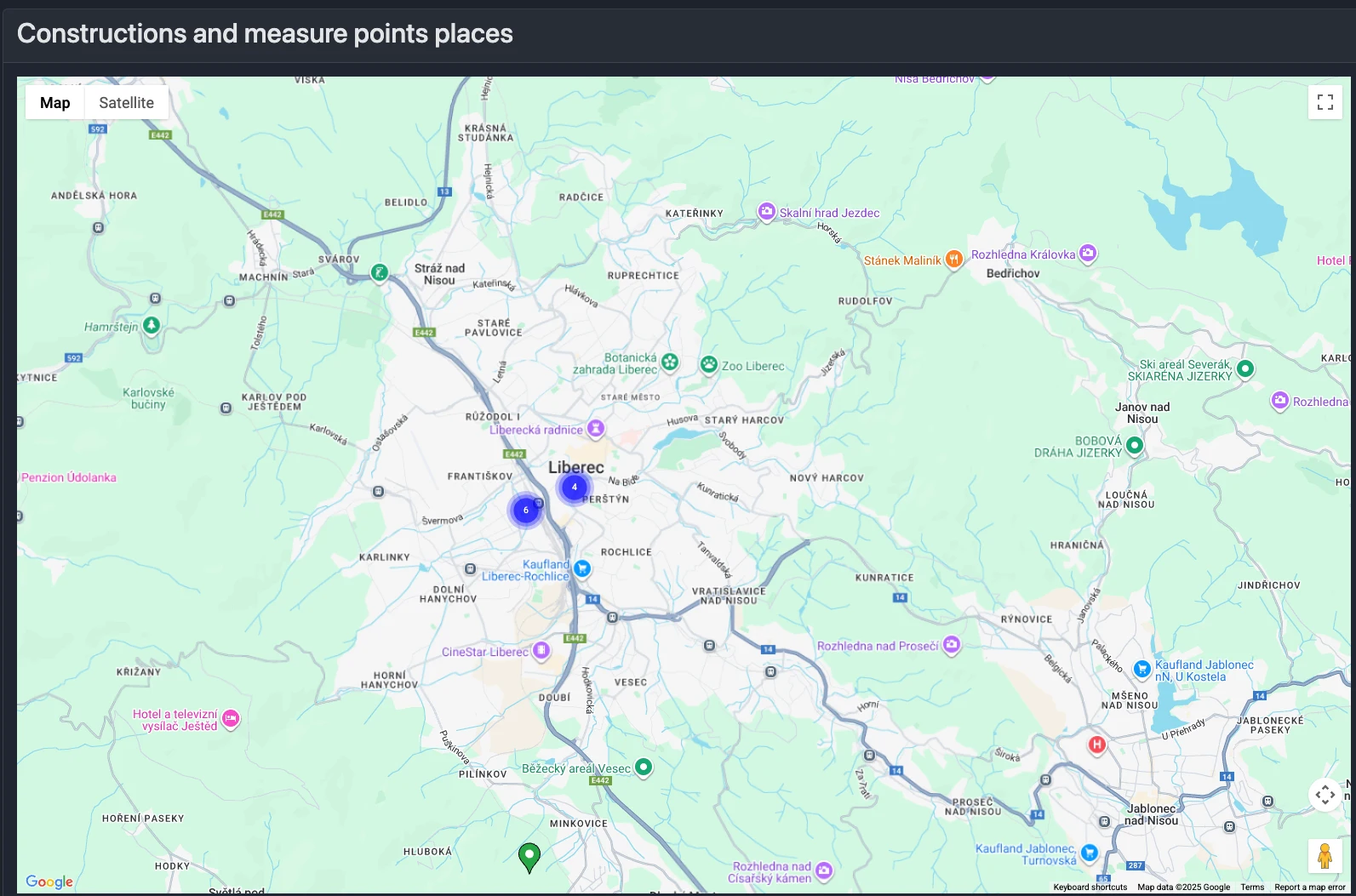
What you’ll see
- A map with markers representing Measurement Points that have devices assigned
- Markers are clustered when zoomed out; zoom in to see individual points
- Pin color indicates status:
- Red — alert state
- Green — normal
Marker details and actions
Click a marker to open an information window with:
- Measurement Point name and Organization name
- Status badge (alert/ok)
- Description (if provided)
- Device name
- Last communication time
- View Data button — opens Charts with the Organization, Construction, and Measurement Point pre-selected
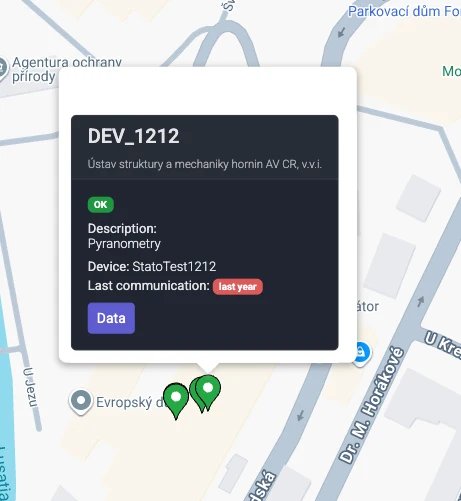
Quick navigation
Use the View Data button to jump straight to charts for the selected Measurement Point.
Notes about locations
- Measurement Points without stored GPS coordinates may appear at a default location on the map
- Set coordinates on the Measurement Point to show the correct position (see Measurement Point basics)